> ## Documentation Index
> Fetch the complete documentation index at: https://guide.dorothy.land/llms.txt
> Use this file to discover all available pages before exploring further.

# 방송 채널 설정

> 전체 연결 화면을 살펴보고, 방송할 플랫폼의 계정을 연결해 보세요.

[워크스페이스의 채널 설정](https://dorothy.land/workspace/broadcast)을 열면 아래처럼 플랫폼별 연결 상태를 한눈에 볼 수 있어요.

<div className="guide-shot" style={{ width: 1168 }}>
  <img src="https://mintcdn.com/flate/iZ9EKSrBawdjjBQn/images/guides/current/channels-overview.webp?fit=max&auto=format&n=iZ9EKSrBawdjjBQn&q=85&s=604aa44e6f9a9b89c7e59f85651aae6f" alt="치지직·씨미·유튜브·SOOP·트위치 카드 전체를 빨간 테두리로 표시한 방송 채널 설정 화면. 개인 채널 이름은 모자이크 처리됨" width="1168" height="194" data-path="images/guides/current/channels-overview.webp" />
</div>

**치지직·씨미·유튜브·SOOP**를 연결할 수 있어요. 트위치는 준비 중이에요. 아래에서 연결할 플랫폼의 안내를 따라가세요.

## 치지직 연결

### 1. 치지직 카드에서 연결하기 누르기

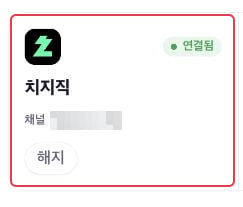
**치지직 → 연결하기**를 누르세요. 이미 연결한 계정은 아래처럼 **연결됨**과 채널 이름이 표시돼요.

<div className="guide-shot" style={{ width: 243 }}>
  <img src="https://mintcdn.com/flate/iZ9EKSrBawdjjBQn/images/guides/current/chzzk.webp?fit=max&auto=format&n=iZ9EKSrBawdjjBQn&q=85&s=343d6739bdbc15de797d43adeabf2f99" alt="치지직 카드에 연결됨 상태가 표시된 화면. 개인 채널 이름은 모자이크 처리됨" width="243" height="207" data-path="images/guides/current/chzzk.webp" />
</div>

### 2. 방송할 네이버 계정으로 로그인하기

치지직에서 방송할 네이버 계정으로 로그인하세요. 권한 안내를 확인하고 연결을 완료하면 도로시로 돌아와요.

### 3. 연결된 채널 확인하기

치지직 카드의 **연결됨** 표시와 **채널 이름**을 확인하세요. 다른 계정이 연결됐다면 **해지**한 뒤 방송할 계정으로 다시 연결하세요.

## 씨미 연결

### 1. 씨미 카드에서 연결하기 누르기

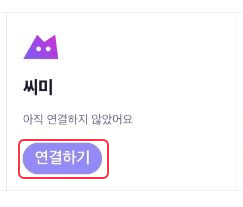
**씨미 → 연결하기**를 누르세요.

<div className="guide-shot" style={{ width: 243 }}>
  <img src="https://mintcdn.com/flate/iZ9EKSrBawdjjBQn/images/guides/current/cime.webp?fit=max&auto=format&n=iZ9EKSrBawdjjBQn&q=85&s=dbd373dbfc3b9c3c9cf9d4d3f11c2205" alt="씨미 카드의 연결하기 버튼" width="243" height="207" data-path="images/guides/current/cime.webp" />
</div>

### 2. 방송할 CI.ME 계정으로 로그인하기

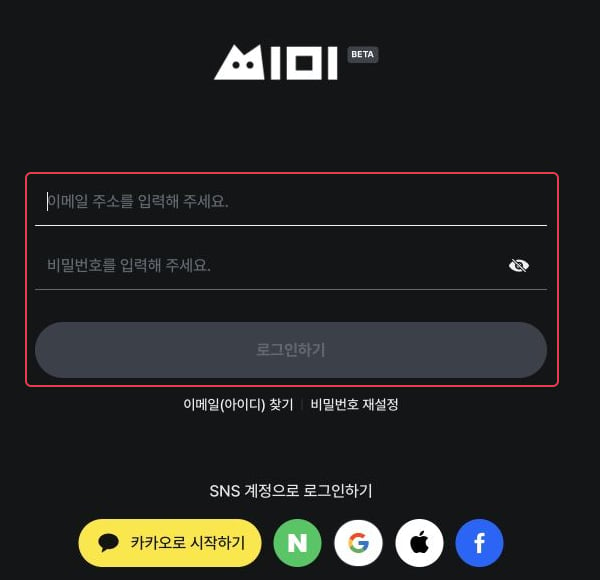
CI.ME 로그인 화면에서 이메일 또는 평소 사용하는 소셜 로그인으로 접속하세요. 방송할 계정이 맞는지 확인한 뒤 연결 안내를 완료하세요.

<div className="guide-shot" style={{ width: 600 }}>
  <img src="https://mintcdn.com/flate/iZ9EKSrBawdjjBQn/images/guides/current/cime-login.webp?fit=max&auto=format&n=iZ9EKSrBawdjjBQn&q=85&s=17ead5dbe1fde96a54ad6ce1b2f8b4f1" alt="개인정보가 입력되지 않은 CI.ME 로그인 화면" width="600" height="580" data-path="images/guides/current/cime-login.webp" />
</div>

### 3. 연결된 채널 확인하기

도로시로 돌아오면 씨미 카드의 **연결됨** 표시와 연결된 채널을 확인하세요. 다른 계정이 연결됐다면 **해지**하고, CI.ME에서 방송할 계정으로 로그인한 뒤 다시 연결하세요.

<Tip>
  [룰렛](/roulette)과 [돌림판](/wheel)의 씨미 후원 조건은 **빔** 단위로 입력해요.
</Tip>

## 유튜브 연결

### 1. 유튜브 카드에서 연결하기 누르기

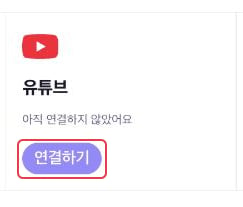
**유튜브 → 연결하기**를 누르세요.

<div className="guide-shot" style={{ width: 243 }}>
  <img src="https://mintcdn.com/flate/iZ9EKSrBawdjjBQn/images/guides/current/youtube.webp?fit=max&auto=format&n=iZ9EKSrBawdjjBQn&q=85&s=98cc96b726be86d4f5bf5a12457d67c7" alt="유튜브 카드의 연결하기 버튼" width="243" height="207" data-path="images/guides/current/youtube.webp" />
</div>

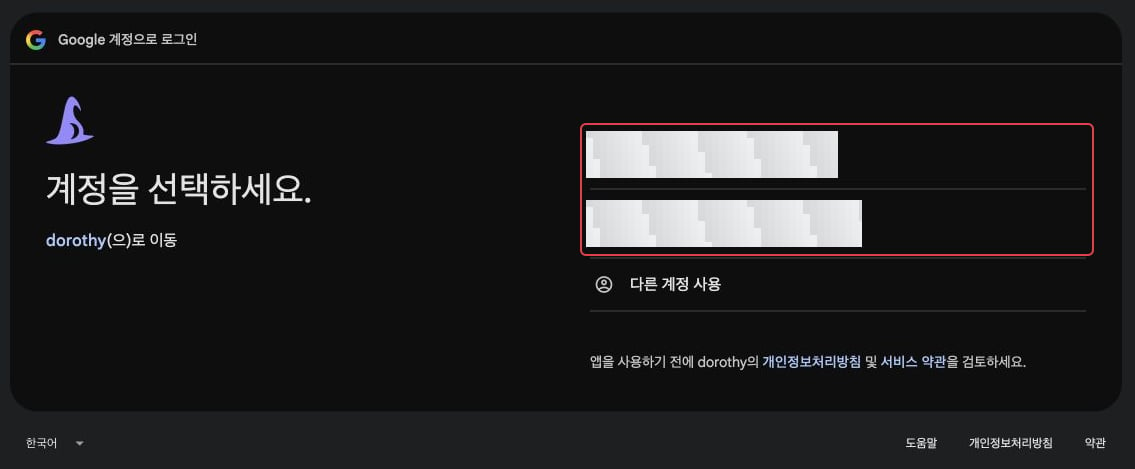
### 2. 방송할 Google 계정 선택하기

유튜브 채널을 운영하는 Google 계정을 선택하세요. 원하는 계정이 없다면 **다른 계정 사용**으로 로그인하면 돼요. 이어지는 권한 안내를 확인하고 연결을 완료하세요.

<div className="guide-shot" style={{ width: 1135 }}>
  <img src="https://mintcdn.com/flate/iZ9EKSrBawdjjBQn/images/guides/current/youtube-login.webp?fit=max&auto=format&n=iZ9EKSrBawdjjBQn&q=85&s=21e09b051e5d8f53fc63d6086f91f598" alt="계정 이름과 이메일을 모자이크 처리한 Google 계정 선택 화면" width="1135" height="469" data-path="images/guides/current/youtube-login.webp" />
</div>

도로시로 돌아오면 유튜브 카드에 **연결됨**과 내 채널이 표시되는지 확인하세요. 채널 선택 화면이 나온다면 실제 방송할 채널을 골라 주세요.

### 3. 현재 라이브 불러오기

1. YouTube Studio에서 라이브 방송을 시작하세요.
2. 도로시 **채널 설정**으로 돌아오세요.
3. 연결된 유튜브 카드의 새로고침 아이콘인 **현재 라이브 불러오기**를 누르세요.

<Tip>
  채널을 연결해도 아직 시작하지 않은 라이브의 채팅은 읽을 수 없어요. 새 라이브를 시작했을 때도 현재 라이브를 다시 불러와 주세요.
</Tip>

## SOOP 연결

### 1. SOOP 카드에서 연결하기 누르기

**SOOP → 연결하기**를 누르세요.

<div className="guide-shot" style={{ width: 243 }}>
  <img src="https://mintcdn.com/flate/iZ9EKSrBawdjjBQn/images/guides/current/soop.webp?fit=max&auto=format&n=iZ9EKSrBawdjjBQn&q=85&s=556a595cd2e20b369e5db417d396f493" alt="SOOP 카드의 연결하기 버튼" width="243" height="207" data-path="images/guides/current/soop.webp" />
</div>

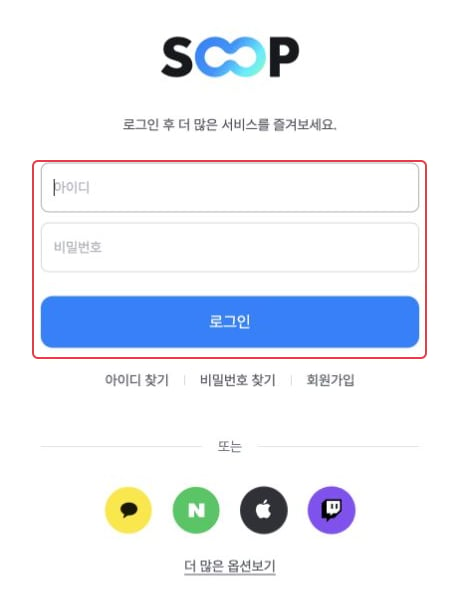
### 2. 방송할 SOOP 계정으로 로그인하기

SOOP 로그인 화면에서 방송할 계정으로 로그인하세요. 평소 사용하는 로그인 방법을 선택하고, 이어지는 연결 안내를 완료하세요.

<div className="guide-shot" style={{ width: 465 }}>
  <img src="https://mintcdn.com/flate/iZ9EKSrBawdjjBQn/images/guides/current/soop-login.webp?fit=max&auto=format&n=iZ9EKSrBawdjjBQn&q=85&s=82b3e9126be4e06e28907760d0e37ae8" alt="개인정보가 입력되지 않은 SOOP 로그인 화면" width="465" height="615" data-path="images/guides/current/soop-login.webp" />
</div>

### 3. 연결된 채널 확인하기

도로시로 돌아오면 SOOP 카드의 **연결됨** 표시와 연결된 채널을 확인하세요. 다른 계정이 연결됐다면 **해지**한 뒤 방송할 계정으로 다시 연결하세요.

<Tip>
  [룰렛](/roulette)과 [돌림판](/wheel)의 SOOP 후원 조건은 **별풍선 개수**로 입력해요. 예를 들어 10을 입력하면 별풍선 10개가 기준이에요.
</Tip>

## 연결한 채널의 채팅 확인하기

1. [채팅 오버레이](https://dorothy.land/workspace/chat)에서 내 템플릿을 준비하세요.
2. [OBS에 채팅창을 추가](/chat-overlay-obs)하세요.
3. 연결한 플랫폼의 실제 방송에서 채팅을 보내 OBS에 나타나는지 확인하세요.

| 증상 | 확인할 내용 |
| - | - |
| 연결했는데 채팅이 안 보여요 | 카드가 연결됨인지, 연결한 채널이 실제 방송 중인 채널과 같은지 확인하세요. |
| OBS에 채팅이 안 보여요 | 현재 프리셋의 공개 URL인지 확인하고 OBS 브라우저 소스를 새로고침하세요. |
| 유튜브 라이브를 찾지 못해요 | 방송이 시작됐는지, 연결한 채널이 맞는지 확인한 뒤 현재 라이브를 다시 불러오세요. |
| Google에서 연결을 차단해요 | 화면에 나온 오류 내용을 확인하고 도로시에 문의하세요. |

연결을 **해지**하면 도로시는 해당 플랫폼의 채팅을 더 이상 읽지 않아요.


This documentation is built and hosted on [Mintlify](https://mintlify.com), a developer documentation platform.